Stardew Valley Mod Manager
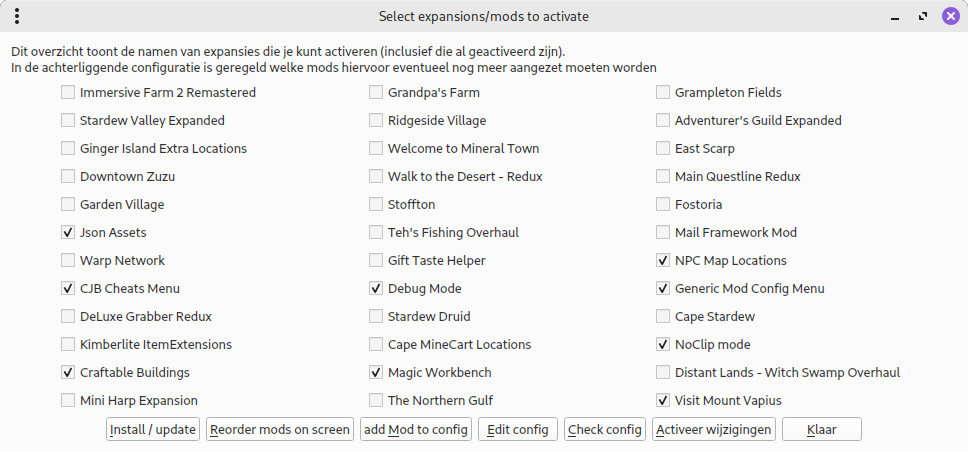
Mods for this game are collections of files that as a whole can be downloaded as a zip file and extraced to a directory at a given location under the game directory. By default it is then activated and can be deactivated by having the top directory name start with a period (like hiding a file in Linux).
For a mod to properly function it can be necessary to have another mod present and activated, this is what we call a dependency. This can also be handled with this tool: since the relations are contained within the configuration you don't have to find out and remember this yourself. It's one of the reasons I made this tool.
The "manager" is a screen that shows the available mods with a checkmark to indicate whether they should be active or not, and a couple of buttons to perform specific actions.
The configuration initially consisted of two parts: a list with names of installed mods coupled with the directory they're installed in and a collection of lists per mod enumerating their dependencies.
When I reorganized this based upon the metadata this became a mapping of mod names (or rather: installation directories) on collections of data among which a list of components; and a mapping of component names on collections of data among which the dependencies with other mods. Later I added a mapping of save files on mod names.
Whether a mod is activated or not is not registered in the configuration, it can be inspected looking at the name on disk.
Originally...
...only the following features were built in:
Edit config
This function wasn't even present at the very first start; it opens up the configuration in a text editor to manually make changes. When I changed the structure and the save format from .ini to json I remoed this function. I found the JSON readable but chaotic looking and manual editing shouldn't be necessary anymore.
Check config
Manual changes especially are prone to typing errors and inconsistencies emerging; this option is meant to check the changes before you activate them and possibly render the game unplayable. Changing through the dialog (see extensions below) makes this mostly unnecessary, therefore this function has also been removed.
Activate changes
This option "translates" the configuration to which mod directories are to be prepended with a dot and which are not. In the app's first incarnation it also closed it; but I though it would be friendlier to the user (i.e. me) to keep the new situation on screen so that you could see if you needed to make further changes.
It's what the tool was designed for, so this function is still present.
Done
This shuts off the application. Originally it was meant to quit without applying changes.
Extensions
to the original version
Add mod to config
This function was meant to use a dialog to add a mod to the configuration. It has been replaced by "install / Update" and :Mod Attributes".
Reorder mods on screen
This function was intended to be able to change the order of mod names on the screen. I ditched it because I decided it was more trouble than it was worth.
Install / Update
I decided I could have the configuration be updated on installing a mod. It saves manually installing and having to llok for the right location.
Mod Attributes
A dialog to change things after install and to view some information about a mod.
Set Defaults
A dialog to change some standard settings.
Remove
For the odd time I want to get rid of a mod.
select savefile
This function makes it possible to automatically select mods based on which ones a given save file uses.